There are no guarantees when it comes to partition recovery on Mac. Even when using high-quality Mac data recovery software, the developers of programs like this will give you 100% certainty that your lost partition can be recovered. There is a good chance that the program will be able to assist in the task, but it is not a sure thing.
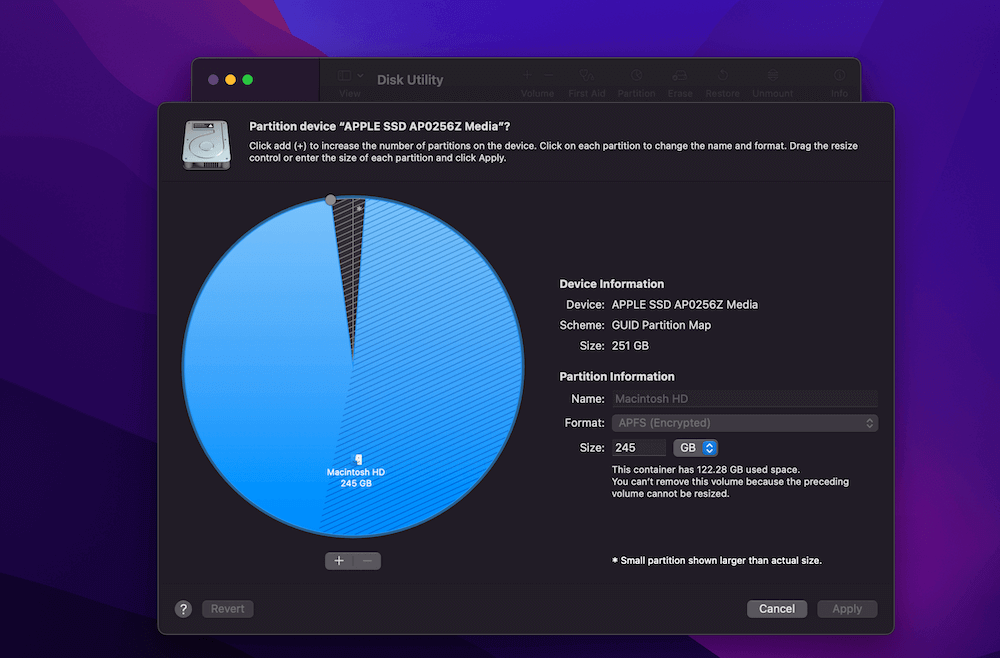
I’ve been a long-time Mac user and I love playing around with tech, from fixing small issues on macOS to partitioning my Mac drive to make the best use of the disk. In this article, I’ll let you know how to recover deleted partitions on Mac.
Let’s get started.
Contents
What is a Partition on Mac?
In a basic sense, a partition on a Mac is the splitting up or separation of disk space on the hard drive. Partitioning a disk will split the hard drive up into two or more useable drives on the same computer.
This can allow you to run several different operating systems on the same device as well as store files and data in separate locations on the same computer.
Your Mac computer sets up one of these partitions within your system automatically but it is possible to create more depending on your needs. If you look at the Disk Utility on your computer, you will see that the system is separated into a partition level and disk level within your hard drive.
These are the initial two partitions set up in your system and just as they can be filled with separate data, they can also be deleted.
How to Manage Partitions on Mac
The way you would set up, create, and manage disk partitions on your Mac computer is through Disk Utility.
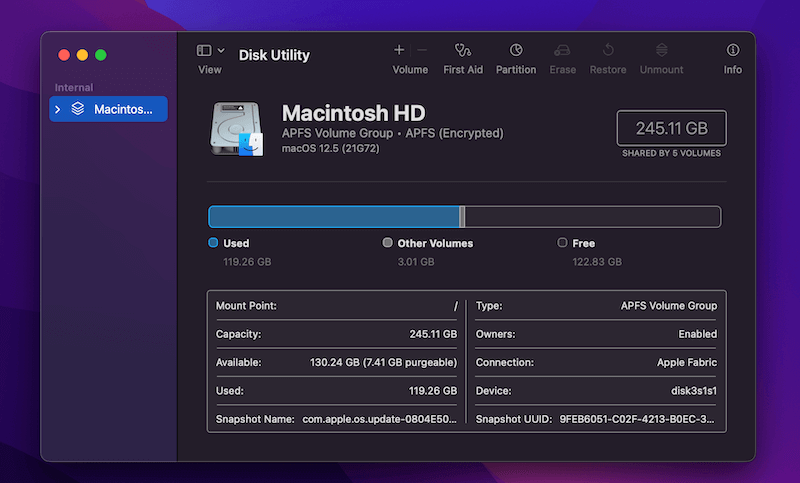
Disk Utility allows access to your hard drive and you can see how much data is being stored here as well as how many disk partitions are on your computer. You can also create partitions from the Disk Utility easily and effectively with a few simple clicks.
You can access your Disk Utility just as you would other apps on your computer. Open the Finder and then click on the Utilities folder. Scroll through the options in the folder until you see Disk Utility and then double-click on the icon to open it.
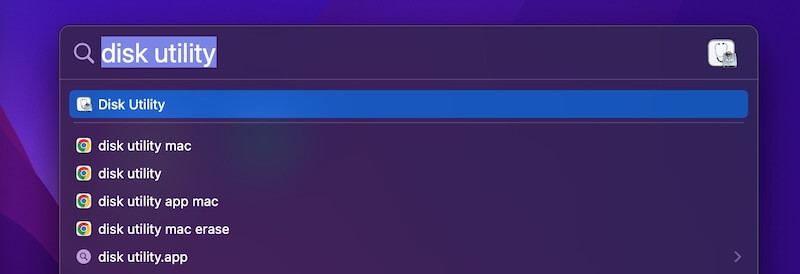
Another way to open this app is by doing a quick Spotlight search. Once you have access to the Disk Utility you can set up and manage the partitions on your computer.
You can also manage Mac partitions by using a third-party app, read our Mac partition manager review for more.
How Do Partitions Get Deleted?
Just like any other type of file, disk partitions can become deleted. You can intentionally delete these partitions when you are setting up or refining your system or they can become lost due to other reasons.
A common accidental way in which these partitions get deleted is when trying to actually create them. The process of setting up a new partition is pretty simple but so is accidentally deleting these disk separations.
Reasons for partition loss that extend outside of user error include issues within your computer such as data corruption including partition maps and file systems. Loss can also be caused by fatal disk errors and disk formatting issues.
Regardless of the cause, a lost partition can be a really large issue because of the amount of data it contains. A lost partition does not mean you simply lost or deleted a single file, it can result in a very high number of lost files.
How to Recover a Deleted Partition on Mac
Disk Utility is good to know about to create disk partitions but it won’t allow you to recover partitions that become lost or deleted. In order to effectively recover these lost drives and files, you will need to use data recovery software which will allow you to locate and restore a deleted partition of any size.
There are many different options available when it comes to data recovery software but EaseUS Data Recovery Wizard for Mac is a great choice.
This software is specifically designed to help you locate and recover any and all files missing due to a deleted partition. It can also help with recovering other types of files so it is a great option for a variety of data recovery needs.

To recover a deleted partition on your Mac using EaseUS, follow these steps:
- Download EaseUS Recovery Wizard for Mac and install the app.
- After the Wizard downloads and installs, launch the program.
- Select the location of where your missing partition used to be.
- Click Scan.
- The program will run a scan to try and locate the lost files.
- Once the scan has been completed, select the partition files you wish to recover
- Click Recover Now.
Note: EaseUS Data Recovery Wizard is free to download and can help you recover up to 2GB of data. Since lost partitions can easily contain more data than this limit, you may need to purchase the full version of the software to succeed in your recovery efforts.
Even though there is a cost to the software, it is well worth it when it is able to recover and restore lost partition files. If EaseUS doesn’t work out, you can also try other Mac data recovery software that we have reviewed.
Final Thoughts
If you are not a computer person, try not to deal with this kind of technical stuff related to partitioning by yourself. Ask a geek friend or visit the Apple Genius Bar and let the real geeks help you out.
Also, remember to always back up your Mac before you make important changes. Time Machine is handy, there are also many other Mac disk cloning software and cloud storage worth considering too.
Have you ever deleted a partition on Mac? Were you able to recover it? What did you use to do so? Let us know in the comments below.